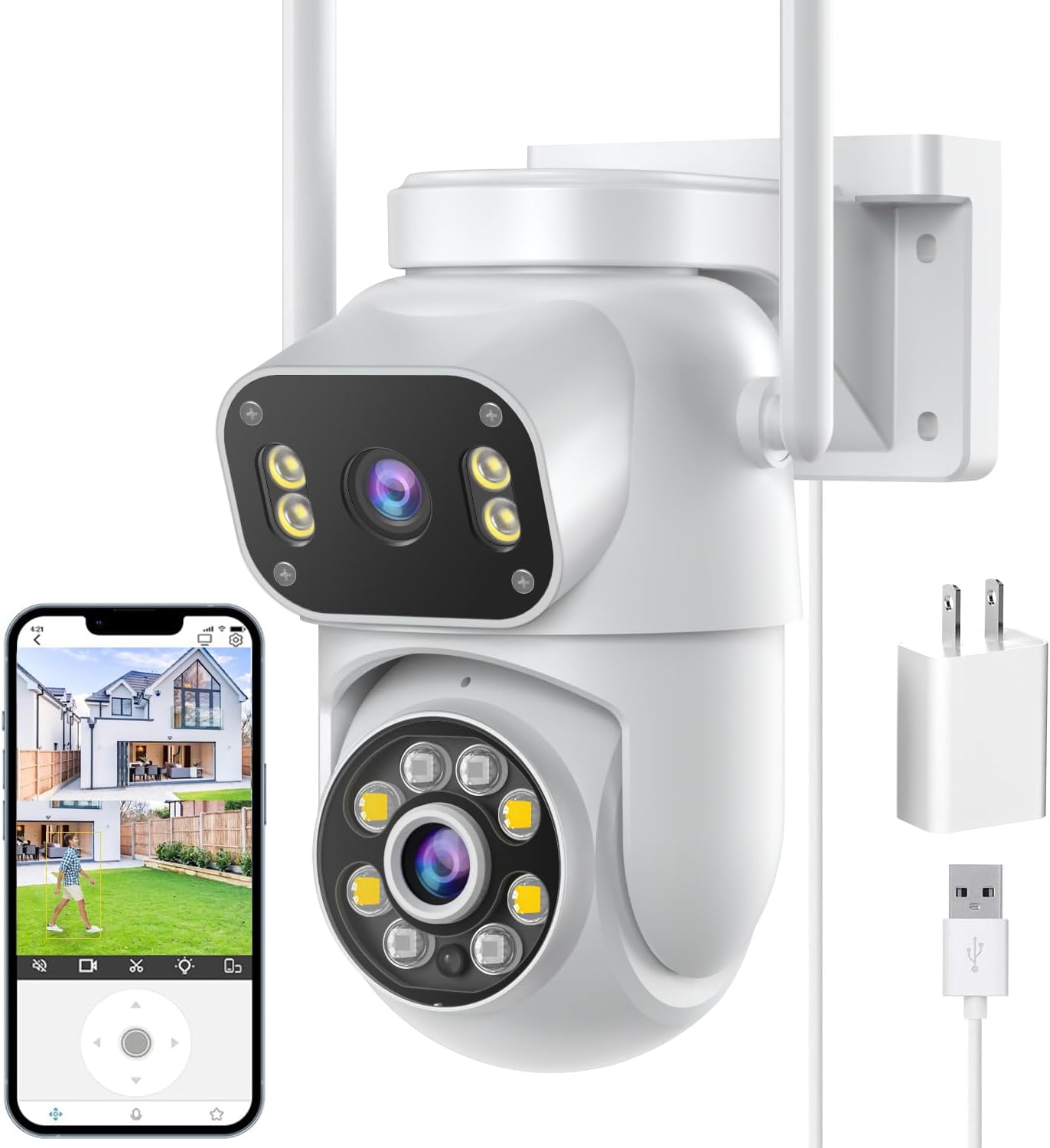
- 6MP (3MP + 3MP) · 2 lenses
- Pan & tilt from the app
- Wi-Fi 2.4 + 5GHz
Every iCSee camera has a reset control, usually tucked beside the microSD card. Find it, hold it for about ten seconds, and the camera is ready to pair again under your own account.
Reviewed September 2026On most iCSee cameras the reset button sits next to the microSD slot under a rubber flap; on a pan-tilt head, tilt the lens up to expose it. Hold it for about ten seconds with the camera powered, wait for the restart, then add the camera again in the iCSee app. XiongMai firmware, which iCSee cameras run, ships with the user name admin and a blank password.
Every iCSee camera carries a reset control, but makers hide it in different places depending on the housing. Look before you press anything, because the right spot saves you from prying open a weather seal.
On the SDTNOVA dual-lens linkage PTZ the reset button sits to the left of the microSD slot, under the same rubber flap. The three-lens three-screen dome puts its RESET button at the card slot too. Most pan-tilt domes follow that pattern, so tilt the lens head up by hand or from the app until the slot cover shows.
A pinhole needs a SIM tool or a straightened paper clip. A rubber button only needs a fingertip. Press the flap and its gasket fully home afterwards, since that seal is what keeps rain away from the card and the board.
| Camera or body style | Reset location | Where the detail comes from |
|---|---|---|
| SDTNOVA dual-lens linkage PTZ | Left of the microSD slot; hold about 10 seconds | Maker's own FAQ |
| Three-lens three-screen dome | At the SD card slot | Maker's spec sheet |
| 6MP 3-lens optical zoom PTZ | One-touch reset button | Maker's description |
| Pan-tilt domes in general | Under the card-slot cover on the lens head | Usual layout; confirm on the quick-start card |
| PoE and fixed bullets | On the cable tail or under a bottom plate | Usual layout; confirm on the quick-start card |
| Bulb cameras | Inside the lens globe, near the card slot | Usual layout; confirm on the quick-start card |
Named cameras come from their makers' own documents. The body-style rows describe the common layout, which varies between factories, so check the card that came in the box.
A factory reset wipes the camera's Wi-Fi details, device password and settings, then returns it to pairing mode. SDTNOVA's instructions call for a long press of about ten seconds, which matches what most iCSee firmware expects.
A short tap often only reboots the camera, or does nothing at all. Holding for half a minute does no harm on most models, but it is not needed.
| A reset clears | A reset keeps |
|---|---|
| Wi-Fi name and password | Recordings already on the microSD card |
| Device password (back to admin, blank) | Firmware version |
| Motion zones, human detection, schedules | Cloud clips stored on the account |
| Share list and preset positions | The physical mount and cabling |
Before you factory reset iCSee camera settings you spent time tuning, write down the motion zones, alert schedule and preset positions. Pan-tilt presets in particular take a while to rebuild. For the pairing that follows, the setup steps run from the QR scan to firmware.
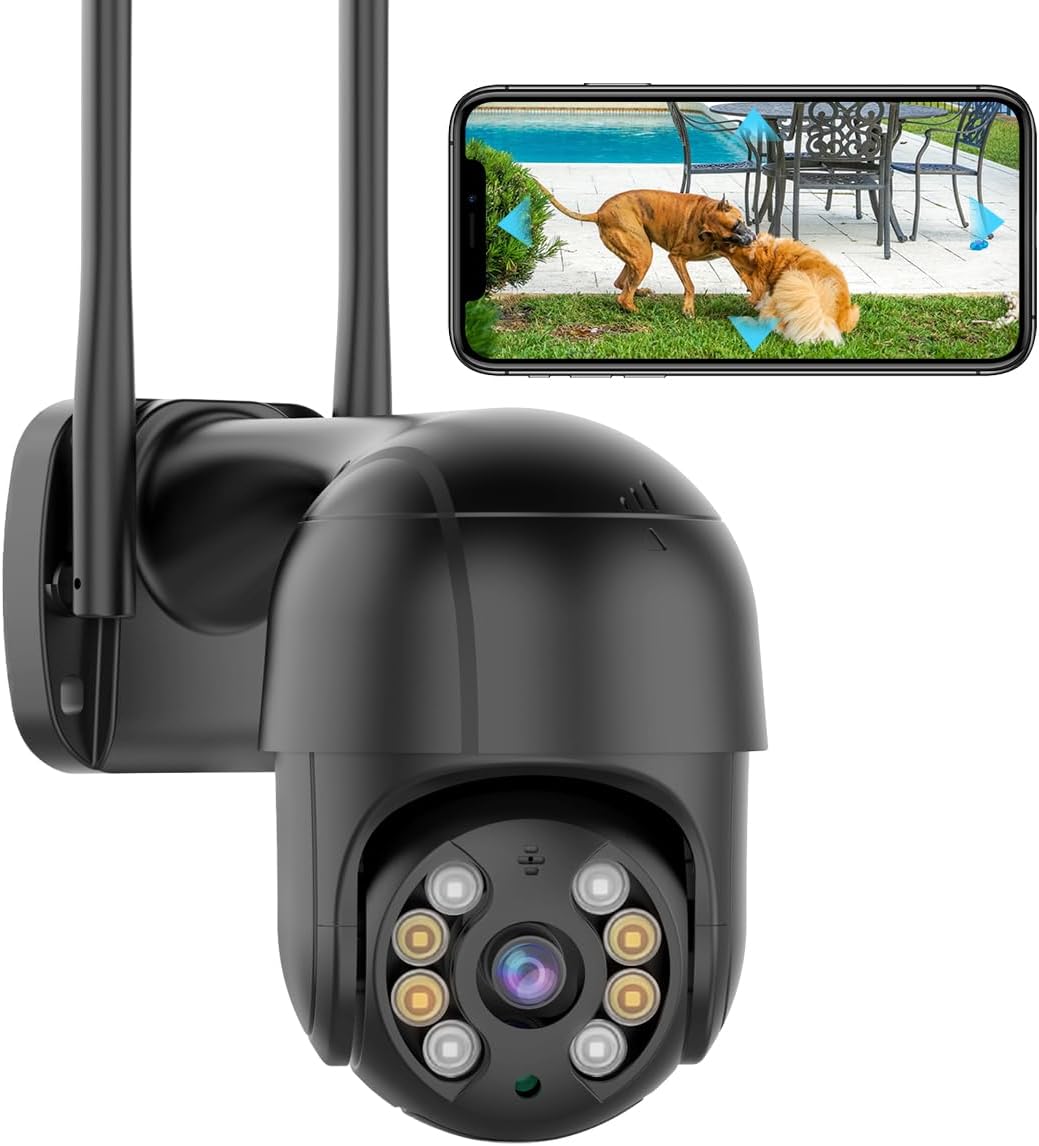
BESDERSEC A6 1080p Pan-Tilt Camera |
SDTNOVA Dual-Lens Linkage PTZ Camera |
GESKS Single-Lens PTZ Camera |
6MP 3-Lens Optical Zoom PTZ Camera |
Three-Lens Three-Screen PTZ Camera | |
| Type | Pan-tilt camera | Multi-lens camera | Pan-tilt camera | Multi-lens camera | Multi-lens camera |
| Resolution | 1080p (2MP) | 6MP (3MP + 3MP) | 8MP 4K | 6MP | 1MP per lens |
| Lenses | 1 lens | 2 lenses | 1 lens | 3 lenses | 3 lenses |
| Pan & tilt | Yes | Yes | Yes | Yes | Yes |
| Power | Plug-in adapter | Plug-in adapter | Plug-in adapter | Plug-in adapter | Plug-in adapter |
| Wi-Fi | 2.4GHz | 2.4 + 5GHz | 2.4GHz | 2.4GHz | 2.4GHz |
| Ethernet port | — | — | Yes | — | Yes |
| Zoom | — | — | — | 4x optical | — |
| See this camera | See this camera | See this camera | See this camera | See this camera |
Two different passwords sit behind an iCSee camera, and people often reset the wrong one. The app password belongs to your iCSee account; the device password belongs to the camera itself.
On XiongMai firmware the factory account is admin with an empty password. Recent versions of the app set or request a device password during pairing, so after setup a blank password no longer opens the camera. You can change it later in the camera's settings under the password option.
Choose a long, unique device password and store it next to the recorder or Home Assistant login it feeds. A reset takes the camera back to admin with no password, so do it on your own network and set a new one straight away.
Third-party tools such as a recorder or RTSP viewer on a PC will stop connecting the moment the device password changes, so update them together.
A single-lens 8MP pan-tilt with a network port, so after a reset it can be found over a cable with the app's Nearby Cameras search. Once it is back in your account, move it to Wi-Fi at your own pace.
See this cameraAn iCSee camera links to one owner account at a time. When a second-hand or returned camera refuses to add, the app usually reports that the device is already bound to another user.
Shared users are not owners. A relative you shared with can remove the camera from their own app without touching yours, and the owner can revoke any shared user at any time.
Before selling or gifting a camera, delete it from your account, reset it and take out the microSD card. That order clears your footage, your binding and your Wi-Fi password together. Sharing access the right way, by QR code rather than by handing over a login, is covered with the rest of the iCSee app features.
A reset that changes nothing is usually a timing or power problem, not a broken switch. Rule out each cause, one by one, before deciding the camera is faulty.
A 5GHz-only router is invisible to nearly every iCSee camera, with dual-band models such as the SDTNOVA PTZ as the rare exception. If the reset worked and the camera still will not join, the Wi-Fi band is the next suspect, and the offline fixes follow that path.
A camera with an Ethernet port gives you a way round a stubborn pairing. Cable it to the router and use the app's Nearby Cameras search, a route GESKS documents for its own models. The app spots the camera on the wired network and shows its IP address.
If none of this brings the camera back, the fault is likely in the board or the button itself, and the maker's warranty is the right route.
First work out which password is lost. The app login comes back with Forgot password and an emailed code; a forgotten device password needs the ten-second reset, which also clears Wi-Fi and settings.
On most pan-tilt and dual-lens models it sits beside the microSD slot under a rubber flap; tilt the lens up to see it. Bullets often carry it on the cable tail, and bulb cameras keep it inside the lens globe.
XiongMai firmware ships with the user name admin and a blank password. Recent app versions set a device password during pairing, and a factory reset returns it to blank.
About ten seconds, with the camera powered and fully booted. Release when it plays a prompt or the pan-tilt head starts its sweep.
Usually it was pressed while the camera was still booting, held too briefly, or the power supply is weak. Wait for the boot sweep to end, hold for ten seconds, and use the supplied adapter.
No. It clears Wi-Fi, passwords and settings, but footage already on the microSD card stays until you format the card.
The old owner deletes it from their app, then you reset it and add it. Without access to that account, contact the maker's support with the serial number and proof of purchase.