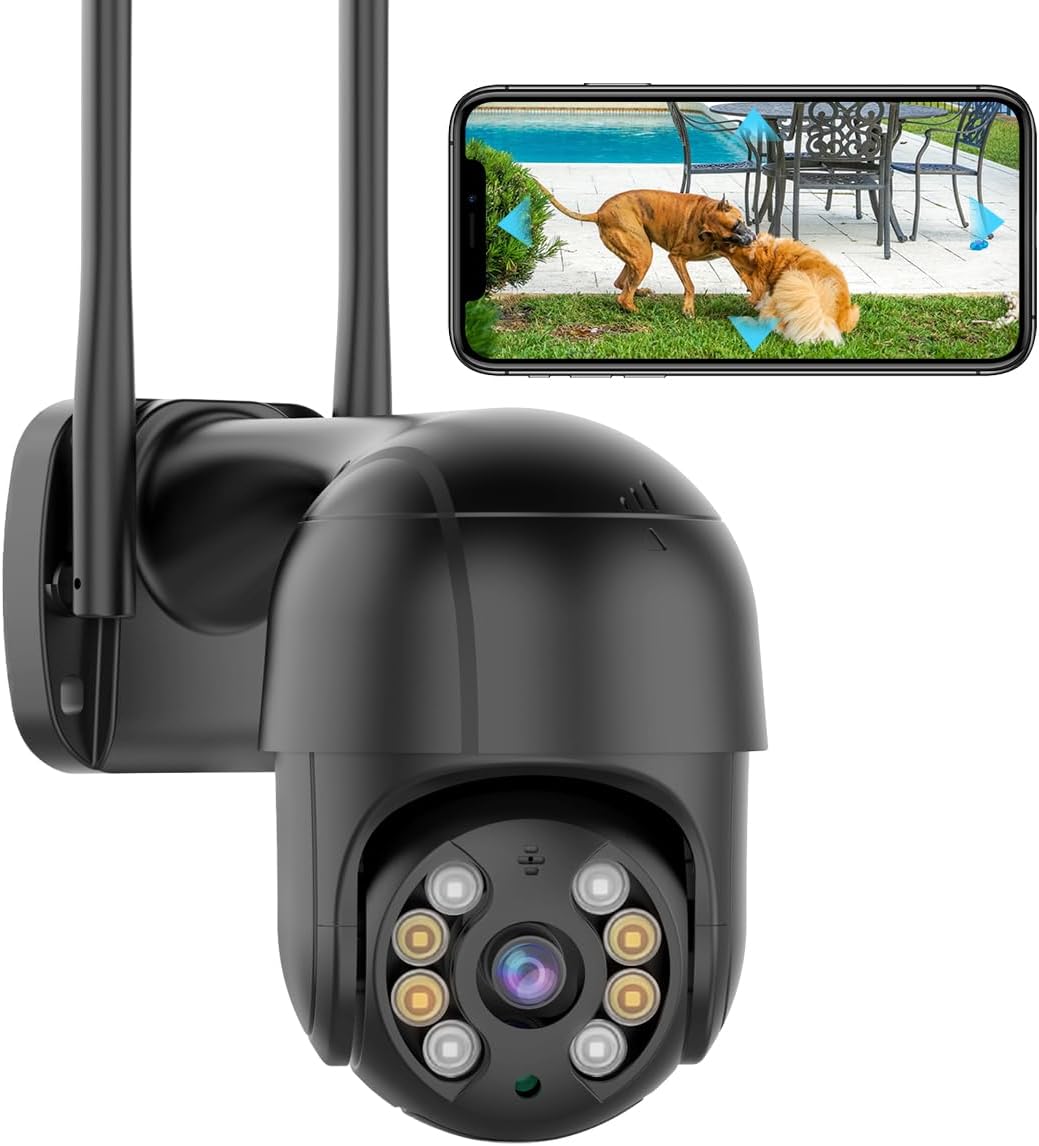
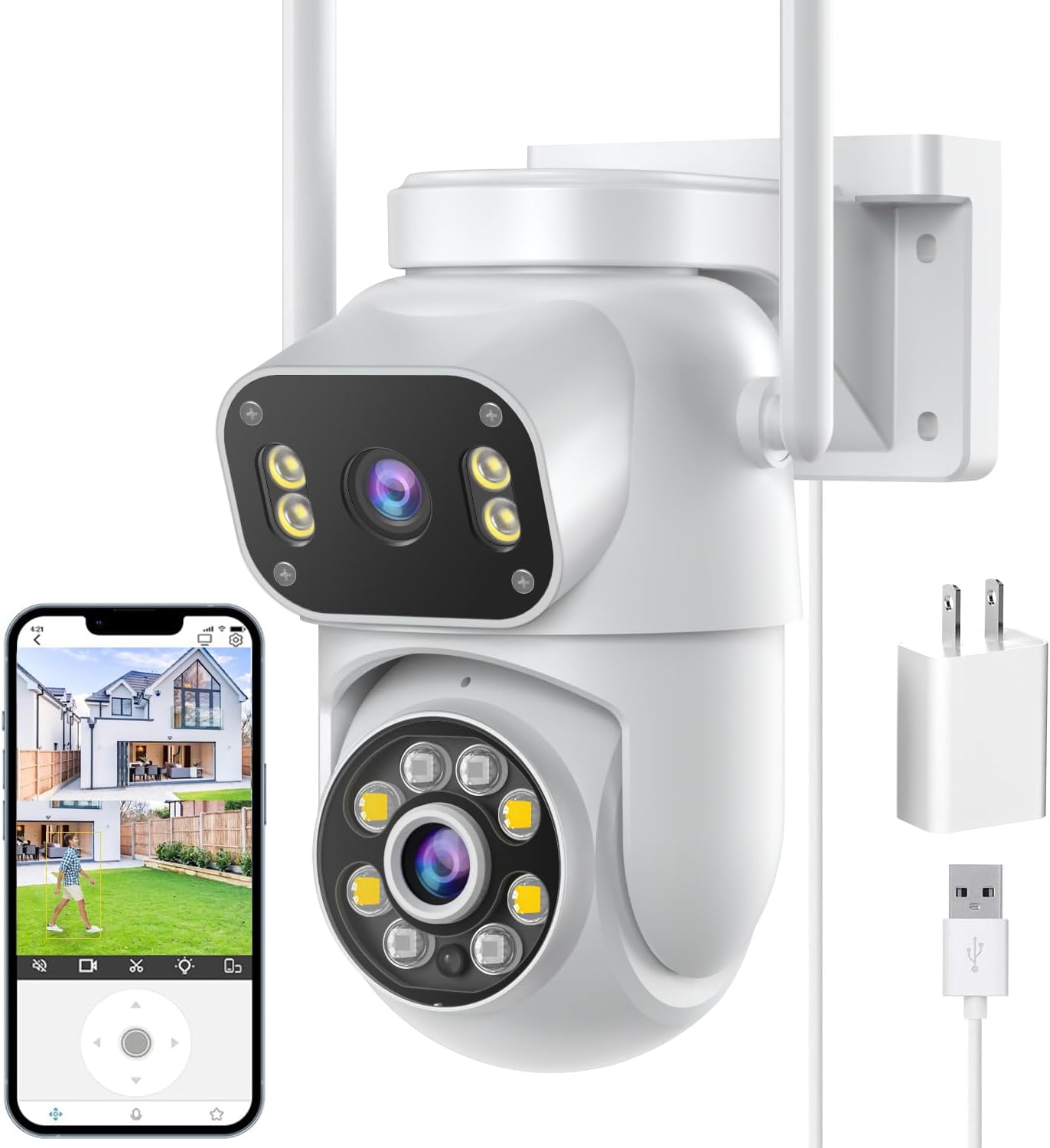
- 6MP (3MP + 3MP) · 2 lenses
- Pan & tilt from the app
- Wi-Fi 2.4 + 5GHz
Pair the camera on the bench, prove the picture at the mounting spot, then drill. Most iCSee cameras want 2.4GHz Wi-Fi, a QR code held up to the lens and ten minutes of patience.
Reviewed September 2026Install the iCSee app, sign in, tap the plus icon and add the camera while your phone sits on the 2.4GHz network. Enter the Wi-Fi password, hold the QR code the app shows about a hand's width from the lens, and wait for the camera to announce the connection. Only a few iCSee cameras, such as the SDTNOVA dual-lens linkage PTZ, also join 5GHz.
Almost every iCSee camera carries a 2.4GHz radio only. The phone passes its current network to the camera during setup, so if the phone sits on a 5GHz band, the camera is handed a network it cannot hear.
The SDTNOVA dual-lens linkage PTZ is the clear exception: it joins 2.4GHz or 5GHz, and its maker sums up the trade-off well. The 2.4GHz band reaches further; the 5GHz band carries more data over a shorter distance. One of its versions is 2.4GHz only, so check which one you hold.
When a box says 5G, it means 5GHz Wi-Fi, not a mobile 5G network. A mobile-data iCSee camera is a separate product with a SIM slot; none of these Wi-Fi models takes one.
| Method | What you need | Use it when | Cameras that support it |
|---|---|---|---|
| QR code at the lens | Phone on 2.4GHz, Wi-Fi password | First choice for most cameras | Nearly all iCSee Wi-Fi models |
| Nearby Cameras over Ethernet | Network cable to the router | QR scans fail, or you want a wired link | GESKS single-lens, three-lens dome, 180° dual-lens |
| Camera hotspot (AP mode) | Phone joins the camera's own Wi-Fi | No router at the site | SDTNOVA dual-lens linkage PTZ |
| Bluetooth | Phone Bluetooth on | Bright sun or a hard-to-reach lens | 4MP dual-lens pan-tilt, E27 bulb, 2.8-inch screen PTZ |
| PoE, no pairing | PoE switch or recorder | Wired installs with a recorder | HIKJBSET 5MP bullet, PoE dual-lens PTZ |
Methods taken from each maker's description of its own camera. AP mode keeps the camera off the internet, so remote viewing waits until it joins a router.
The standard iCSee pairing shows a QR code on the phone and lets the camera read it through its own lens. Anssipo's quick-install guide lays out the same order most makers follow.
Screen brightness matters more than people expect. Turn it up, step out of direct sun, and peel any protective film off the lens. A dual-lens camera reads the code through one lens only, usually the fixed upper one, so try each if nothing happens.
Some makers also print an iCSee camera QR code on the body. That label carries the device serial number, and scanning it with the app adds a camera that is already online, such as a PoE model.
The printed quick-start card doubles as the manual for most iCSee cameras. Keep it with the receipt, since it also shows where the reset button sits.
SDTNOVA Dual-Lens Linkage PTZ Camera |
GESKS Single-Lens PTZ Camera |
4MP Dual-Lens Pan-Tilt Camera |
4K Dual-Lens E27 Light Bulb Camera |
Anssipo 3-Lens 8x Hybrid Zoom PTZ Camera | |
| Type | Multi-lens camera | Pan-tilt camera | Multi-lens camera | Bulb camera | Multi-lens camera |
| Resolution | 6MP (3MP + 3MP) | 8MP 4K | 4MP (2MP + 2MP) | 8MP 4K | 3MP |
| Lenses | 2 lenses | 1 lens | 2 lenses | 2 lenses | 3 lenses |
| Pan & tilt | Yes | Yes | Yes | Yes | Yes |
| Power | Plug-in adapter | Plug-in adapter | Plug-in adapter | E27 bulb socket | Plug-in adapter |
| Wi-Fi | 2.4 + 5GHz | 2.4GHz | 2.4GHz | 2.4GHz | 2.4GHz |
| Ethernet port | — | Yes | — | — | — |
| Zoom | — | — | 4x digital | — | 8x hybrid |
| See this camera | See this camera | See this camera | See this camera | See this camera |
A camera that will not take the QR code still has other ways in. Which ones depend on the hardware, so check the ports and the maker's notes before you pick a method.
Cameras with a network port can stay wired for good. A cable avoids interference from neighbours' routers and gives a steadier picture on a busy evening, when everyone else's devices crowd the 2.4GHz band.
After a wired pairing, some models let you add the Wi-Fi details in the camera's settings and then pull the cable. Check that the camera stays online for a full day on Wi-Fi before you trust it with the only view of a door.
A 5MP PoE bullet that takes power and video over one Ethernet cable, so there is no QR code, no password and no band to choose. It shows up in the iCSee app, a web browser or an ONVIF recorder.
See this cameraChange routers or Wi-Fi passwords and every iCSee camera loses its link at once. The quickest fix is to give the new router the same network name and password as the old one.
With the name and password unchanged, the cameras reconnect on their own within a few minutes. The same works after a provider swaps your router, as long as the 2.4GHz band stays switched on.
When the network must change, the route depends on the firmware. Some cameras offer a Wi-Fi option in their settings while they are still online, so you can move them before the old network disappears. Everything else needs a ten-second reset and a fresh pairing.
An iCSee camera firmware update arrives through the app too. The camera settings screen usually carries a device information or upgrade entry that checks for a newer version.
Cameras that keep dropping after a router change are covered in the offline troubleshooting steps.
Most iCSee camera installation mistakes come from drilling before testing. Carry the paired camera to the spot on an extension lead, open live view on your phone, and watch for a minute before you mark any holes.
Seal every joint. Leave a drip loop in the cable so water runs off before it reaches the plug, then wrap the DC barrel and network connector with self-amalgamating tape or put them in a small junction box.
Ceiling-hung pan-tilt domes show the picture upside down until you flip the image in the camera's settings. A PoE bullet can sit up to 100 metres of cable from its switch, the Ethernet limit, which is often further than Wi-Fi reaches.
More on the socket question sits with the light bulb camera, and outdoor power options with the outdoor cameras.
Put your phone on the 2.4GHz network, tap the plus icon in iCSee, choose Add Device, enter the Wi-Fi password and hold the on-screen QR code in front of the camera lens until it chimes.
Give the new router the same name and password as the old one, or use the Wi-Fi option in the camera's settings while it is online. Otherwise reset it and pair it again.
Raise the phone's brightness, move out of direct sun, hold it 15 to 30 cm from the lens and remove any lens film. Check the Wi-Fi password, since a typo makes the camera read the code and then fail.
Only a dual-band model can, such as the SDTNOVA dual-lens linkage PTZ; pair it with the phone on the 5GHz network. Most iCSee cameras carry a 2.4GHz radio only.
The printed quick-start card in the box is the manual for most models. It shows the pairing steps, the reset button and the ports.
Open the camera's settings in the app and look under device information or upgrade. Keep the camera powered until it restarts.